

2. Connect a subscription
Follow the same example, check the result, and continue to the next chapter.
You are signed in as the administrator. Now connect one Codex subscription and check which models it offers.
We call it Codex account A throughout this tutorial. This is an example name; choose something recognizable if you prefer.
Add the account
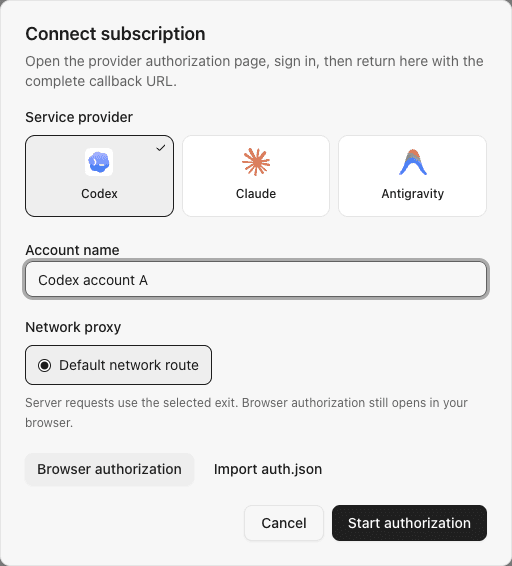
- Open Accounts and select Add account.
- Choose Codex and enter
Codex account Aas its name. - Start browser authorization, open the link and sign in with your subscription account.
- After authorization, copy the complete
http://localhost:1455/auth/callback?...address from the browser address bar into SubLane's authorization form. - Complete the form and return to the account list.
Example account form with a sample name:
A connection error at localhost is expected: SubLane does not receive the callback on that port. Include the query string when copying, and do not share the callback address with others.
Using a Codex credential file? Follow the import steps in account connection, then continue here.
If this account needs a specific outbound proxy, add it first and select it in the account form before authorization or import. The provider sign-in page still opens through your browser.
Verify and inspect models
Run Verify connection for Codex account A, then open its Models list. Note one model ID actually shown there; you will use it in chapter 5. Your subscription may offer different models from someone else's example.
Check the result
The account should be enabled, verification should succeed, and the model list should contain available models. Unassigned is expected: the next chapter puts the account in a pool.
If the list is empty, verify again. If that does not help, use model catalog troubleshooting before continuing.
Previous: 1. Start SubLane