

Resource allowances
Find and set share, priced-amount, or token limits in a workspace.
Resource allowances are optional. If members only need access to a subscription, grant them an account pool in Members and stop there. Add an allowance when you need to limit how much each person may use from a dedicated pool.
Where to find it
Select the workspace in the switcher at the top of the left sidebar. Then open Administration → Resource allowances → Add resource allowance. The four choices in the form are By share, By amount, By tokens, and By time window.
If Add resource allowance is disabled, first make sure the workspace has an enabled, nonempty account pool that does not already have an allowance. The pool's accounts must not be shared with another pool before you save an allowance.
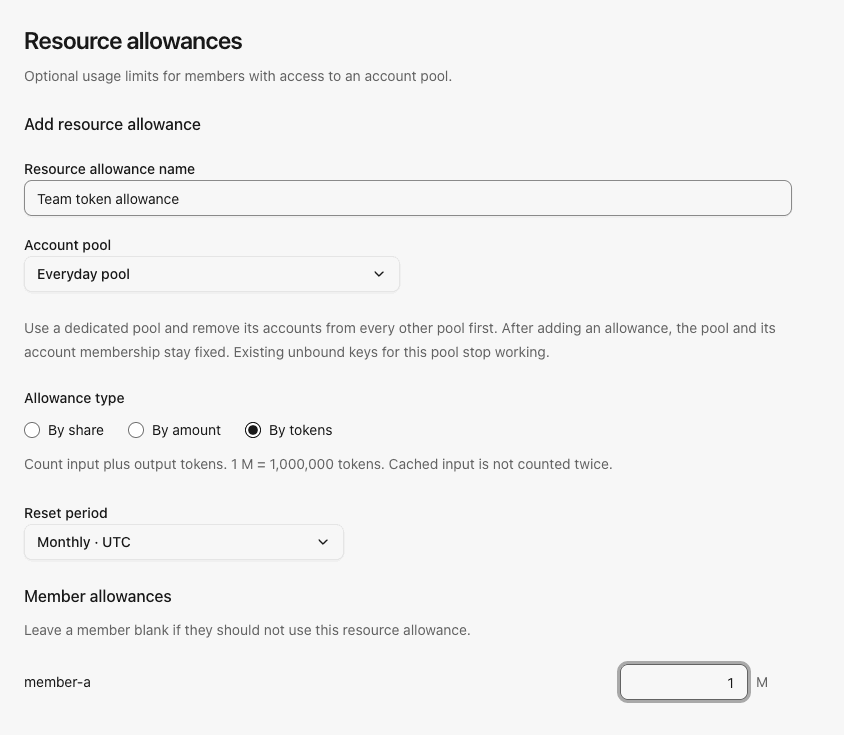
Example token allowance form with synthetic members and limits:
Prepare the pool and members
- Connect and verify a subscription under Accounts.
- Under Account pools, create an enabled pool containing that account. For an allowance, remove its accounts from any other pool in this workspace.
- Under Members, open each ordinary member's Pool access and grant that pool. Owners and administrators already have access to enabled pools. Anyone with access to the pool can receive its allowance.
A newly connected account is unassigned until you add it to a pool. New members receive no automatic pool grant. These steps all take place in the same selected workspace.
Choose one limit
| Choice in the form | Use it when | What is counted | Reset |
|---|---|---|---|
| By share | Divide a configured total by member percentages | Choose an internal USD or token total; usage follows the selected unit | Chosen daily time or monthly date and time in the instance time zone |
| By amount | Give each member an internal USD allowance | Input, cached-input, and output tokens at the saved model prices | Chosen daily time or monthly date and time in the instance time zone |
| By tokens | Set a direct token ceiling | Input plus output tokens; cached input is not counted twice | Chosen daily time or monthly date and time in the instance time zone |
| By time window | Add multiple internal USD limits with shared defaults and optional member overrides | Each member has a separate ledger; the same priced request counts in every configured window | Each window starts at activation and renews after its elapsed duration |
By share has two bases. Token share counts reported input plus output tokens; cached input is not counted twice. Amount share converts those tokens using the saved model prices. Enter one total budget and each member's percentage. These budgets are internal: a token total is not the subscription's actual capacity, and USD is not an upstream cash balance or customer invoice. Upstream quota can run out first. For token budgets, 1 M means one million tokens.
Create and use an allowance
- Click Add resource allowance, name the rule, and select the dedicated pool.
- Choose one of the four types. For By share, choose By token share or By amount share, enter one total budget, and set member percentages. For By time window, add up to eight conditions with a whole number of hours or days and a shared internal USD limit. Select members, then optionally override individual conditions for one member. A blank USD limit means unlimited for that condition. Other types take one direct member limit. Shares may total at most 100%; Split equally can fill them for you. The member list has a Select all members checkbox in every type.
- For By amount, By amount share, or By time window, SubLane fills prices automatically from models supported by the selected pool and snapshots them when saving. Models without a current catalog price use a previously saved price when available; otherwise requests to those models are blocked. The administrator sees current price-coverage warnings. Saving fails only when no usable model price remains. Daily/monthly types also choose a reset clock or date and clock.
- Choose when the rule starts and save. The workspace's administrator can open View usage on the saved rule; members see their own balances under Usage.
- Each member creates a new personal API key for the allowance and its pool. Existing keys are not rebound automatically.
One pool can have one allowance. Once saved, its account membership stays fixed even while the rule is paused. Pausing a rule blocks new use of that pool; it does not make the pool freely available. Changes to limits, price snapshots and the reset schedule take effect in the next allowance cycle, while access and pause changes affect subsequent requests. The edit form previews the effective date calculated from the current schedule before saving; for time-window rules, a long current window can delay an edit by up to its full duration (at most 365 days). A request already in flight may finish above the remaining allowance.
For share calculations and manual corrections, read the accounting reference.