

Tutorial
6. Share with members (optional)
Give a colleague direct access to a working account pool.
Your personal key already works with Everyday pool. You can now share that pool with a colleague in the same workspace while keeping separate logins and keys.
Create and grant access
- As the workspace administrator, open Members and create the example login
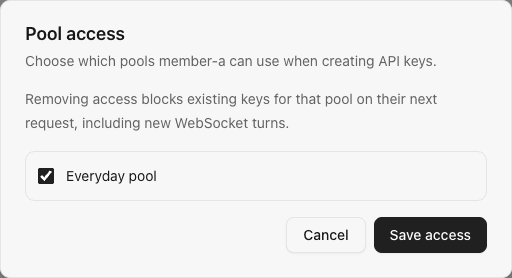
member-a. Deliver its initial password privately. - In the new member's row, open Pool access, select Everyday pool, and save.
- The member signs in and creates a personal key for Everyday pool.
- Configure their client with their own key. On another computer, use the instance's reachable HTTPS address, rather than that computer's
127.0.0.1.
The member should see Everyday pool, make a request, and find it on their own Requests page. Pools without a direct grant stay unavailable. Add another colleague by creating their login and granting only the pools they need.
Ordinary shared use requires no allowance scheme. Upstream subscription quotas and member request limits still apply. Set resource allowances later if you need to divide a dedicated pool's capacity.
Example direct pool grant for member-a:
Previous: 5. Make your first request